QR Codes for Mailing List Management
To add an email address to a Mailgun mailing list, please select from one of the following options:
Option 1
If you want to let a customer add themselves to a mailing list, please use the following link: https://app.teamip.com/contact_list/
This URL can be accessed with this QR code:
URL for this QR code is: https://app.teamip.com/public/entities/images/public_facing_list_adder.jpg
Instruct them to choose their relevant mailing list, then input their name and email. Finish the process by pressing submit.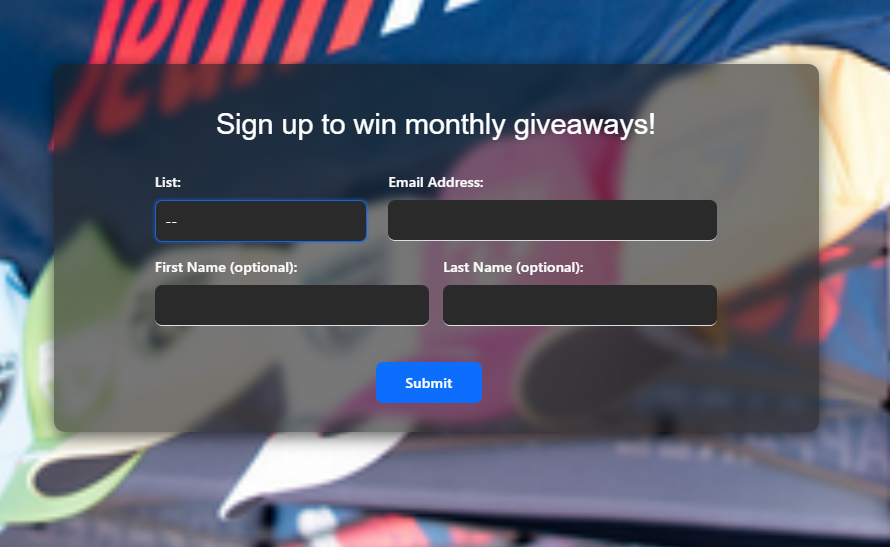
Option 2
If you do not know which list you would like to add an email address please use the following
link: https://app.teamip.com/list/
This URL can be accessed with this QR code:

URL for this QR code is: https://app.teamip.com/public/entities/images/basic_list_adder.png
Scanning this QR code will take you to the List Manager home page. From here, you will then need to select a mailing list based on the available options under “List:”.
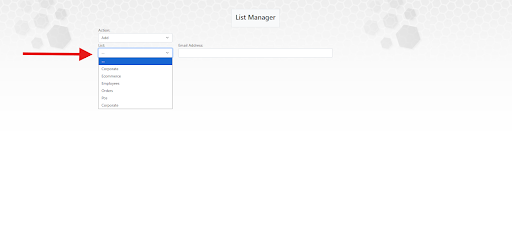
Once a mailing list has been selected, proceed to add the email address. Once finished, click submit. The email address has now been added to the selected mailing list.
Option 3
If you already know which mailing list you would like to add an email address to, click on the link or scan the QR code related to the list you want:
Corporate: https://app.teamip.com/list/corporate
This URL can be accessed with this QR code:

URL for this QR code is: https://app.teamip.com/public/entities/images/corporate_list_adder.png
Ecommerce: https://app.teamip.com/list/ecommerce
This URL can be accessed with this QR code:

URL for this QR code is: https://app.teamip.com/public/entities/images/ecommerce_list_adder.png
Employees: https://app.teamip.com/list/employees
This URL can be accessed with this QR code:

URL for this QR code is: https://app.teamip.com/public/entities/images/employees_list_adder.png
DMO: https://app.teamip.com/list/dmo
This URL can be accessed with this QR code:

URL for this QR code is: https://app.teamip.com/public/entities/images/dmo_list_adder.png
POS: https://app.teamip.com/list/pos
This URL can be accessed with this QR code:

URL for this QR code is: https://app.teamip.com/public/entities/images/pos_list_adder.png
Sports Travel: https://app.teamip.com/list/sports_travel
This URL can be accessed with this QR code:
URL for this QR code is: https://app.teamip.com/public/entities/images/sports_travel_list_adder.png
Clicking one of these links or scanning one of these QR codes will take you to the List Manager home page. Depending on which QR code you scanned or which link you clicked, your desired mailing list will be selected by default. Please proceed to add the email address. Once finished, click submit. The email address has now been added to the selected mailing list.
Articles in this section
-
How to Create a New Store Using Alpha & Omega
Step 1: Using the following link, https://app.teamip.com/uluwatu/, arrive at the login window. Proceed to log in with your given credentials. &...
-
How to Create a New Catalog Using Alpha & Omega
Step 1: Using the following link, https://app.teamip.com/uluwatu/, arrive at the login window. Proceed to log in with your given credentials. &...
-
How to Create a Ticket in Alpha Omega
Step 1. Log in to the Ticket System by using the following link: https://app.teamip.com/uluwatu/index.php?area=SUMMA&recaction=API. Then, enter yo...
-
Alpha Omega FAQs
Where can I find the login page for Alpha Omega? Login via the link https://app.teamip.com/uluwatu/ 2. Does the b...
-
Headwear Aspect Ratio
The file must be in PNG format with a 1:1 aspect ratio (square). The recommended dimensions are 1000 x 1000 pixels or larger, while maintaining the 1:...
-
How to Add Price and Cost to a Catalog Item in Alpa Omega
Step-By-Step Video Tutorial
-
How to Calibrate Thread Colors on Embroidery Items in Alpha Omega
Step by step guide: https://youtu.be/FPYFYHYDeGk
-
How to Find a Store's Store Number in Alpha Omega
Step by step guide: https://youtu.be/Yh3FpCYOczg
-
Standard Banner Dimensions
Recommended Banner Dimensions: Mobile screens: 800 x 800 pixels Medium screens: 1280 x 300 pixels Large screens: 1920 x 500 pixels Using a 72-...
-
Possible Themes for POD Store
Demo Index with URLs and Resource Links This document provides a list of available Magento Porto theme demos, including their live URLs and links to...
-
Demo 30 resources
Demo 30 Main Hero Banner Description: The large banner at the top of the homepage, showcasing promotional content.Resolution: 1920 × 600 p...
-
Demo 5 Resources
Main Hero BannerDescription: The large rotating banner at the top of the homepage, showcasing seasonal promotions and featured collections.Resolution:...
-
Demo 9 Resources
Main Hero BannerDescription: Large banner slider at the top of the homepage, used for featured promotions and announcements.Resolution: 1920 × 6...
-
Demo 18 Resouces
Main Hero BannerDescription: Large main banner at the top of the homepage, used to showcase featured promotions.Resolution: 1920 × 600 pixels S...
-
Demo 21 Resources
Main Hero BannerDescription: Large banner at the top of the homepage, used for showcasing main promotions or featured products.Resolution: 1920 ×...
-
Demo 22 Resources
Main Hero BannerDescription: Large banner prominently displayed at the top of the homepage, ideal for main promotions or campaigns.Resolution: 1920 &t...
-
Demo 31 Resources
Main Hero BannerDescription: Large banner at the top of the homepage used for primary promotional content or campaigns.Resolution: 1920 × 800 pi...
-
Demo 35 Resources
Main Hero BannerDescription: Large banner at the top of the homepage showcasing key promotions or featured content.Resolution: 1920 × 700 pixels...
-
How to Find Artwork Files in Alpha Omega
Please follow along with this instructional video:https://youtu.be/F_2yUSPYZUw
-
How to Modify Your Stores Catalog in Alpha Omega
Please follow this step by step video: https://youtu.be/EYNa772EDFk
-
How to Select Products and Colors for Your Store
Please watch and follow along with the instructional video: https://youtu.be/8j69ctxIO4M
-
Steps For a New POD Store
Here are the steps a client must Complete in order for a new POD store to be created 1. Ask the client to fill in tthe ICP form https://icp.t...
-
Decoration images and formats
There are two types of decorations offered: DTF-Screen Print -> Requires transparent PNG files, no background an in the highest resolution possibl...
-
Scraplife Odoo Integration Executive Summary
We are currently reconciling two recurring product lists: a well-structured Team IP list of approximately 7,400 products organized by manufacturer ide...
-
How to Generate a Sales Report in Alpha Omega
Click here to watch an instructional video on the topic: https://youtu.be/e9bkk5erTpw
-
How to Create a Product in Magento
In order to create or add products to your Magento store, you must first understand what configurable and simple products are. The core difference bet...
-
ICP FORM INFORMATION
DIAGRAM OF AREAS AND INFORMATION FLOW FOR RESOURCE COLLECTION ICP FORM INFORMATION Xcel Merch Online Store (ICP) Form Online Sto...
-
INFORMATION ALPHA OMEGA SERVER
DIAGRAM OF AREAS AND INFORMATION FLOW FOR RESOURCE COLLECTION INFORMATION ALPHA OMEGA SERVER Creating a Store Profile...